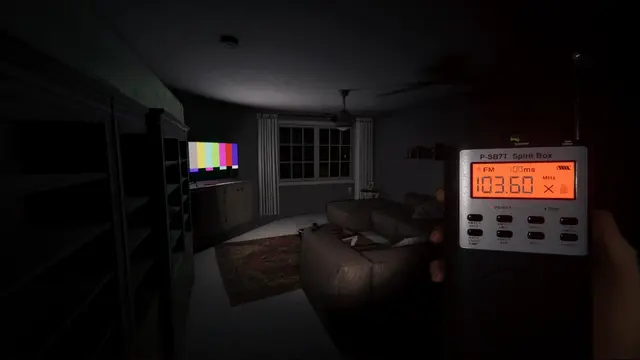
Phasmophobia voice recognition works on PC, PlayStation 5, PS VR2 and Xbox Series X|S, but microphone input and ghost-command recognition are separate features. If teammates can hear you yet the Spirit Box, Ouija Board or Monkey Paw ignores you, start by checking the game's Voice Recognition Mode. Kinetic Games introduced console voice recognition in update 0.11.1.2 and later fixed additional PC and controller issues in 2026.
How do you enable voice recognition on PS5 and Xbox?
- From the main menu, open Options in the journal and find Voice Recognition Mode.
- Set it to Voice, not Text, when you want to speak commands aloud.
- On Xbox, connect a supported headset via the controller or wirelessly. If it disconnects, the game can switch to Text until the microphone is reconnected.
- On PS5, check the DualSense's built-in mic or your attached headset isn't muted. PS VR2 players can use the headset microphone.
- Try a supported Spirit Box phrase and verify the microphone works in another voice-chat application.
Kinetic Games documents those console steps in its official voice-recognition announcement. The update initially listed English, French, Italian, German, Spanish, Brazilian Portuguese and Japanese as supported languages. If spoken commands are not being recognized in your selected language, test with one of the currently supported settings or use Text mode.
What should PC players check first?
In its June 3, 2026 hotfix, Kinetic Games specifically advised Steam players using Voice recognition to make sure the default microphone in Windows matches the microphone intended for the game. Open Windows sound/input settings, choose the correct device, then verify that the same microphone is selected in the game. Disconnect or disable unused inputs temporarily if they are taking priority.
The menu terminology also changed: VOSK became Voice, while Windows Voice became System Voice. Old troubleshooting advice using the previous names may point you to settings that have since been renamed. The June 2026 hotfix fixed one Steam voice-recognition failure and a controller softlock involving the Spirit Box; it does not mean all possible audio issues were eliminated. See the official patch history.
Why can friends hear me but the Spirit Box does not respond?
Ordinary voice chat carries speech to teammates; voice recognition interprets phrases for supernatural interactions. One working does not prove the other is configured correctly. Check the recognition mode, supported language and active microphone first. The Spirit Box also has its own evidence conditions: the ghost may simply not respond at that moment, even when speech recognition is working. A failed response is not by itself proof of a broken microphone.
Can I use the Spirit Box without speaking?
Yes. Switch the game's recognition setting to Text and use its available question prompts. This is an accessibility and troubleshooting alternative, not a workaround that needs an external speech application. On consoles, Text was available even before native speech recognition arrived.
What if the microphone still fails after these checks?
- Restart after changing audio devices: Then confirm the intended mic remains the operating system default.
- Check mute and permissions: Test the headset or DualSense mic in your platform's own audio settings.
- Match the game build: Install current platform updates. Older 2026 builds contained known voice recognition and controller problems.
- Separate chat from recognition: Test whether teammates can hear you and whether recognized Spirit Box questions work, rather than treating both as the same symptom.
- Use Text mode temporarily: If voice recognition remains unreliable, it preserves the ability to ask the ghost a supported question.
The Phasmophobia game profile covers its four-player online co-op. If the problem is joining a friend's console lobby, use our crossplay guide instead.