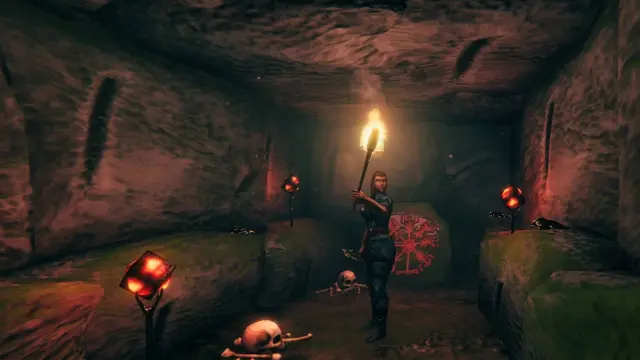
A Valheim dedicated server keeps your shared world accessible even when the player who originally hosted a session is offline. You can run one yourself on Windows or Linux. This guide covers installation, network ports, crossplay, server permissions, world backups, and common connection problems.
Updated October 19, 2026: The latest patch listed on Valheim's official news page is 1.0.20, released October 15, 2026. It includes a dedicated-server CPU usage fix. Iron Gate also notes that a delayed Mac App Store rollout temporarily prevents crossplay between that version and other platforms until the update arrives. The setup and parameters below follow Iron Gate's official dedicated-server guide. The last practical version comparison documented by the original article was September 17, 2026 (version 1.0.14); the current patch notes and documentation were reviewed for this English edition. Back up existing worlds before updating.
Choose the Steam backend or crossplay first
Without any extra startup parameter, a dedicated server uses the Steam backend. Steam players can discover and join it. For internet connections using this backend, the configured ports must be reachable through the router. Valheim uses 2456 and 2457 by default.
Adding -crossplay selects the PlayFab crossplay backend. According to Iron Gate, this lets players on other supported platforms join and routes connections through a relay service, so conventional router port forwarding is not required for external access. A crossplay server cannot, however, be reached using a local IP address or loopback address such as 127.0.0.1.
Valheim is designed for up to ten players. If you prefer managed hosting, check platform compatibility, backup access, and current prices with the provider before purchasing; do not assume every provider supports the same crossplay setup.
Install the Valheim dedicated server
Windows
- Open Steam and enable Tools in the Library filter.
- Install Valheim Dedicated Server.
- Use Manage → Browse local files to open the installation directory.
- Make a copy of
start_headless_server.batand edit the copy. Steam updates may replace the original script.
Linux
The official server package includes start_server.sh. Iron Gate also lists libatomic1, libpulse-dev, and libpulse0 as Linux dependencies. Older distributions must meet its documented GLIBC_2.29 and GLIBCXX_3.4.26 requirements. Iron Gate describes a Docker-based alternative for hosts that lack these libraries.
Configure your Valheim server
Edit the copied Windows startup batch file or start_server.sh on Linux. These are the main parameters:
| Parameter | Purpose |
|---|---|
-name "My Server" | Displayed name in the server browser. |
-port 2456 | Base port; the server also uses 2457 by default. |
-world "MyWorld" | Name of an existing or new world. |
-password "YOUR_PASSWORD" | Server password; replace the example with a private one. |
-public 1 | Show the server in the browser; -public 0 hides it from listings. |
-crossplay | Use the crossplay backend instead of Steam-only networking. |
For example, a Windows crossplay startup command might be:
valheim_server.exe -nographics -batchmode -name "My Server" -port 2456 -world "MyWorld" -password "YourPrivatePassword" -public 1 -crossplay
Save the script after editing it. Iron Gate states that the console message Game server connected indicates that the server is ready for connections.
Configure ports and your firewall
Steam backend
For a Steam-backend server that other players must reach over the internet, forward the configured range from your router to the machine running the server. With the default -port 2456 setting, that means 2456–2457. Use only the required ports, and direct them to the correct local IP address.
If Windows displays a firewall prompt on first launch, allow the server's required network access rather than disabling the firewall entirely.
Crossplay backend
With -crossplay, external connections use the relay backend. Iron Gate states that router port forwarding is not required. Players can join through the published address and port, server list, or join code, depending on their platform.
How friends can join
For crossplay sessions, share the join code displayed in the server or pause-menu interface. Your friends can open Join Game, choose Add Server, and enter the code. Iron Gate has documented crossplay across supported PC and console versions, including Xbox, PlayStation 5, and Nintendo Switch 2. Check platform patch parity before joining: the October 15 patch specifically identifies a temporary Mac App Store mismatch with other platforms until its delayed rollout finishes.
For Steam-backend sessions, players can connect through the server browser or its network address, depending on server visibility. A server configured with -public 0 is not publicly listed.
Configure admins, permitted players, and bans
Valheim uses three text files in the save directory to manage permissions:
| File | Function |
|---|---|
adminlist.txt | Grants administrator privileges. |
bannedlist.txt | Blocks specified players. |
permittedlist.txt | Limits access to the listed players; everybody else is excluded once this list is used. |
Put one Platform User ID on each line. Iron Gate says you can find the ID in the server log or the in-game F2 panel. The format is [Platform]_[User ID] and is case-sensitive.
Administrators can open the console with F5. The official guide lists Kick PLAYERNAME, Ban PLAYERNAME, Unban PLAYERNAME, and Banned for player moderation and inspecting the ban list.
Backups and save locations
The -savedir [PATH] parameter overrides the storage directory for worlds and permission files. Iron Gate lists %USERPROFILE%\AppData\LocalLow\IronGate\Valheim on Windows and ~/.config/unity3d/IronGate/Valheim on Linux as the default paths.
The dedicated server also has configurable automatic backups. According to the official guide, it saves every 30 minutes by default, keeps four backups, and uses a two-hour interval for the first backup and a twelve-hour interval for later backups. Adjust this through -saveinterval, -backups, -backupshort, and -backuplong.
Stop the server cleanly before manual backups. Iron Gate recommends CTRL+C to shut down the server process correctly on Windows and Linux.
Valheim 1.0 and existing worlds
Valheim 1.0 launched on September 9, 2026. The current dedicated-server guide continues to document the startup parameters, ports, and crossplay backend described here.
According to the Valheim 1.0 FAQ, existing saves remain usable, but new biome content is generated properly only in previously unexplored areas. Make a backup before major updates.
World modifiers on dedicated servers
Valheim's supported startup arguments include world modifiers. The -preset option accepts values such as normal, casual, easy, hard, hardcore, immersive, and hammer. Selecting a preset overrides any individual modifiers previously set.
Use -modifier for individual settings such as combat difficulty, death penalty, resources, raids, or portals. If you combine a preset with individual modifiers, place the individual modifier arguments after the preset.
Troubleshooting common problems
| Problem | What to check |
|---|---|
| Server missing or friends cannot join | Steam backend: check 2456–2457, router forwarding, and firewall. Crossplay: check -crossplay, join code, and server status. |
| Local IP fails with crossplay | This is a crossplay-backend limitation. Use the join code, server list, or public address instead. |
| Startup settings reset after an update | Steam can replace the original startup script. Use a copy and back up your parameters. |
| Linux fails to start because of libraries | Check libatomic1, libpulse-dev, libpulse0, and the GLIBC/GLIBCXX versions; Iron Gate documents Docker as an alternative for older distributions. |
| World or permission files are missing | Check the default save directory and any custom -savedir setting. |
Valheim dedicated-server FAQ
For related co-op and platform details, see the Valheim game profile.
Sources
- Iron Gate — Patch 1.0.20 (October 15, 2026): dedicated-server CPU fix and temporary Mac App Store crossplay mismatch.
- Iron Gate — Patch 1.0.17 (October 6, 2026): earlier world-save fix.
- Iron Gate — A Guide to Dedicated Servers: setup, ports, crossplay, permissions, backups, and world modifiers.
- Iron Gate — Crossplay FAQ.
- Iron Gate — Valheim 1.0 FAQ: existing worlds and new biome content.