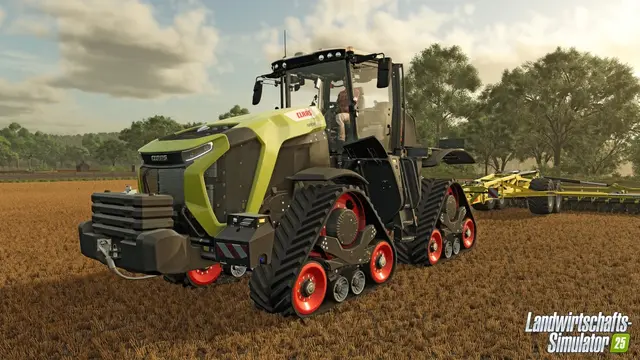
Farming Simulator 25 update 1.25.1.0 was released November 3, 2026. The procedure below concerns FS25 dedicated servers or game settings; verify that your server, players and required mods use compatible versions before applying changes. See the official GIANTS update list for patch details.
Before applying mods or patches or transferring a world to a dedicated server, keep a backup. Distinguish between a copy of the FS25 savegame, including any backup slots accessible in the game's server web panel, and a separate provider-managed snapshot. The latter depends on your hosting contract.
When should you back up your FS25 server?
Create a recoverable snapshot before:
- updating the game or server,
- installing, removing or replacing important mods,
- changing to another modded map,
- importing a different savegame,
- making significant administrative changes.
The purpose is to preserve a known-good world you can return to if a change prevents the farm from loading or activates the wrong save slot.
Option 1: Download a portable savegame backup
A separate copy of the current savegame stored outside the server is the most portable backup. Farm Sim Game's community documentation explains save management in the dedicated-server web panel, including downloads, uploads and earlier backup slots. The documented FS25 import process uses ZIP archives for saved games.
- Stop the game server or wait until a clean save has finished.
- Open Savegames in the FS25 web panel.
- Download the current save if your panel exposes that option.
- Store it outside the server's installation directory and use a distinctive name that records the date and reason.
If there is no direct download button, check the host's documented file, FTP or SFTP access. File paths vary and should not be invented or copied from another provider.
Option 2: Use your hosting provider's backup feature
Many managed providers offer their own backup storage or snapshots. GPORTAL documents such a function for FS25, noting that its described backups are not automatically created. Its manual creation process stops and then restarts the server.
Other providers may offer different schedules, retention periods, UI locations and storage quotas. A provider snapshot is not a universal built-in feature of Farming Simulator 25 itself.
Back up before changing mods
GIANTS identifies mod conflicts as a potential cause of multiplayer games getting stuck during loading. Maintain at least one successful save from before an important mod change. For mod management itself, see the FS25 dedicated-server mods guide.
Restore an older savegame through the web panel
Farm Sim Game documents a feature named Restore Savegame Backup in the FS25 dedicated-server web panel. It allows a previous saved state to be restored into a selected slot, replacing that slot's current state.
- Stop the game server.
- Download the current savegame separately if possible.
- Open Savegames in the web panel.
- Select Restore Savegame Backup for the intended slot.
- Carefully inspect the selected backup date and time.
- Start the restoration.
- Restart the server.
- Check the farm, vehicles, fields, balance and active mods before everyone resumes playing.
Because the restore replaces the currently active slot, make a separate external copy first whenever possible.
Restore a provider-managed backup
Provider restores follow the host's own procedure. GPORTAL documents backups under its My Servers → Administration → Backup interface, but other providers may use different controls.
Before restoring a provider snapshot, confirm:
- the exact timestamp,
- whether it covers only savegames or additional files,
- whether the server must be stopped,
- whether current mods and configuration will be overwritten.
Do not assume a snapshot has the same scope as a downloaded save ZIP.
Re-upload a manually archived savegame
If you already downloaded a ZIP copy of a farm, you can restore it using the supported web-panel upload path. Prefer an unused save slot for your test rather than replacing the current working one immediately.
If you are moving a local farm to a dedicated server rather than restoring an existing server backup, follow our FS25 savegame-transfer guide. Confirm the save slot and back up the current server data before replacing files.
What to verify after restoring
Start the server in a controlled way and verify:
- the correct savegame slot is active,
- the intended map loaded,
- farm buildings, fields, vehicles and production progress match the backup date,
- required mods exist and are enabled,
- server and clients run compatible FS25 versions.
If the world fails to load, inspect the server log and investigate recently changed mods. A backup does not automatically fix an incompatible active mod set. For connection failures after restoring, see the FS25 multiplayer troubleshooting guide.
Which backup strategy is most reliable?
For a long-running co-op farm, use at least one external copy of a proven working save and provider snapshots when they are available. This avoids relying on the same server installation or hosting panel as your only recovery route.
For initial setup, see the FS25 dedicated-server guide. Compare the actual backup and file-access features before choosing any rental offer.