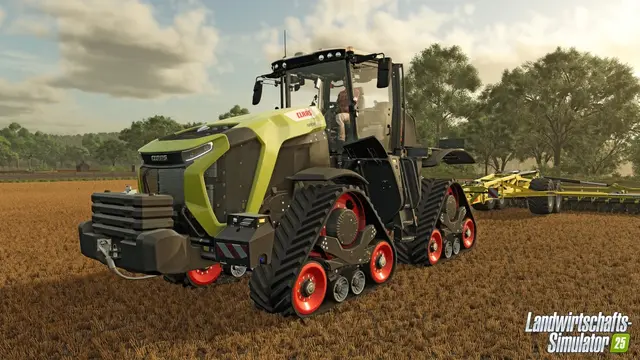
FS25 update 1.25.1.0 was released November 3, 2026. The procedure below concerns FS25 dedicated servers or game settings; verify that your server, players and required mods use compatible versions before applying changes. See the official GIANTS update list for patch details.
Relevant 1.25.1 fixes: GIANTS lists corrections to multiplayer orchard and dog-type synchronization, inconsistent server/client fruit ordering, and large mod downloads failing on some network setups. Update both server and clients before deeper network troubleshooting; these fixes do not cover every connection problem.
If Farming Simulator 25 reports that it cannot connect to a multiplayer game, avoid changing several settings at once. GIANTS explicitly identifies potential problems involving internet connectivity, required UDP ports, VPN or proxy usage, incompatible game versions, mods and DLCs.
This guide arranges the official troubleshooting into a practical sequence. Original technical review: Farming Simulator 25 version 1.23.1.0, September 9, 2026, reviewed September 17, 2026. Platforms: PC, PlayStation 5 and Xbox Series X|S. The steps have not all been retested hands-on under version 1.24.
Which FS25 multiplayer problem are you seeing?
| Symptom | First check |
|---|---|
| Cannot connect to the multiplayer game | Compare installed client/server builds, then test the network and disable interfering VPN software. |
| Loading hangs or crashes | Back up the farm and test a new, unmodded save to isolate mod conflicts, as GIANTS recommends. |
| Dedicated server does not appear | Confirm the server is running with the correct build before reviewing firewall and UDP settings. |
| PC player cannot join a console farm | Check every required mod's PC, PS5 and Xbox platform approvals. |
| Issues started after an update | Check which patch is actually installed on every platform and on the server. |
These are starting points, not diagnoses. Changing one variable at a time makes it easier to identify the cause. For a new rented or self-hosted server, see our dedicated-server setup guide, server mod installation steps, and backup and recovery guide.
1. Compare game versions first
The host, dedicated server and participating game clients should have compatible builds. GIANTS' multiplayer support article requires the game version to match the server and also references the necessary mods and DLCs.
At the October 14, 2026 source update, the published version was 1.24.0.0, released September 29. The preceding hands-on review was at 1.23.1.0. If the error began immediately after an update, check whether the server has received the same patch before troubleshooting your router.
2. Match mods and DLCs
When a shared save uses additional content, the participating installations must have compatible packages. For mixed groups on PC, PS5 and Xbox, the mods must also be approved for all those platforms.
When troubleshooting, avoid disabling several changes at once. Look first at recently installed or updated mods. Our FS25 mods and crossplay guide explains how to check each mod's official ModHub platform listing and dependencies.
3. Rule out VPN, proxies and unstable connections
GIANTS recommends a stable internet connection when the game cannot join multiplayer and advises against relying on mobile or public Wi-Fi for troubleshooting. The publisher also suggests checking for interfering VPN or proxy services.
- Temporarily disconnect an active VPN or proxy.
- Use your regular home network instead of a hotspot or public wireless network where practical.
- Repeat the multiplayer connection test.
Perform these simple checks before editing router and firewall rules.
4. Check GIANTS' documented UDP multiplayer ports
If the router or firewall is blocking traffic, GIANTS names the following UDP ports for multiplayer connectivity:
| Port | Protocol |
|---|---|
| 10823 | UDP |
| 10824 | UDP |
| 10825 | UDP |
Whether manual forwarding is necessary depends on your network and which machine is hosting. Only add targeted rules after checking versions and the connection itself. On a self-hosted server, also confirm that the server process is actually running and traffic to the required ports is allowed.
5. Check or repair your PC installation
For the PC version purchased directly from GIANTS, the developer documents a built-in installation verification feature. Hold SHIFT while launching the game by double-clicking its icon, then choose Verify Installation. According to GIANTS, the process checks and repairs game files automatically.
This specific procedure is documented for the PC DVD or direct GIANTS eShop versions. Do not assume the same key sequence exists on every storefront or console. Use the installation repair tool supported by your actual platform.
6. Diagnose dedicated-server problems separately
For self-hosted or rented dedicated servers, distinguish three questions: Is the server running? Do versions match? Is the active content compatible?
- Check server status: Verify the dedicated server started successfully and returned online after any update.
- Compare server and client versions: A server running an older release can prevent updated clients from connecting.
- Verify mods and DLCs: Check versions and platform support. Do not enable PC/Mac-only mods for mixed PC/PS5/Xbox multiplayer.
- Test recent mod changes: If an error began after modifying the mod set, disable the most recently changed item as a controlled test.
- Investigate network access last: On self-hosted systems, review UDP 10823, 10824 and 10825 together with the local firewall and router.
Hosting control panels vary. GIANTS documents general multiplayer requirements, but not one universal interface for uploading mods, switching saves or changing dedicated-server settings. Follow your provider's manual for those operations.
Renting a server cannot automatically fix version mismatch, incorrect DLCs or incompatible mods. Confirm these issues before paying for a new host.
7. Troubleshoot in a repeatable order
- Compare game and server versions.
- Check required mods and DLCs.
- For crossplay, confirm console support for every enabled mod.
- Temporarily disable a VPN or proxy.
- Test with a stable private connection instead of a hotspot or public Wi-Fi.
- Examine UDP ports 10823, 10824 and 10825 in the router and firewall.
- For direct GIANTS PC purchases, use the documented installation verification feature.
- On dedicated servers, confirm actual server status and software version.
Change only one factor at a time so that you can identify which step improved the connection.
8. If you still cannot connect
GIANTS recommends contacting its support team with your platform, the exact error message, and the log.txt file. Those details make the issue easier to diagnose than a generic report that multiplayer is unavailable.
If the failure appeared just after a patch, consult the official GIANTS update page. For major updates, GIANTS has warned that crossplay services may be affected temporarily during a staged rollout.
9. If the issue concerns the dedicated server
Keep mod-upload problems, savegame restoration and general networking issues separate. Back up the world before changing the mod set. Follow your host's documentation for file management, server configuration and backups; the German original article links further dedicated-server guides that should be replaced by verified English counterparts when those articles are migrated.
Sources
- GIANTS — Could not connect to multiplayer game (network requirements, ports, mods, versions, troubleshooting).
- GIANTS — Update 1.23.1.0 (original version reference and installation check).
- GIANTS — Update 1.24.0.0 (September 29, 2026).